
Manage Servers with Ansible & GitLab Runners

Automate configuring your local Kubernetes hosts with GitLab runners. Describe and document your configuration to keep those machines in check.
Setting Up the Runner
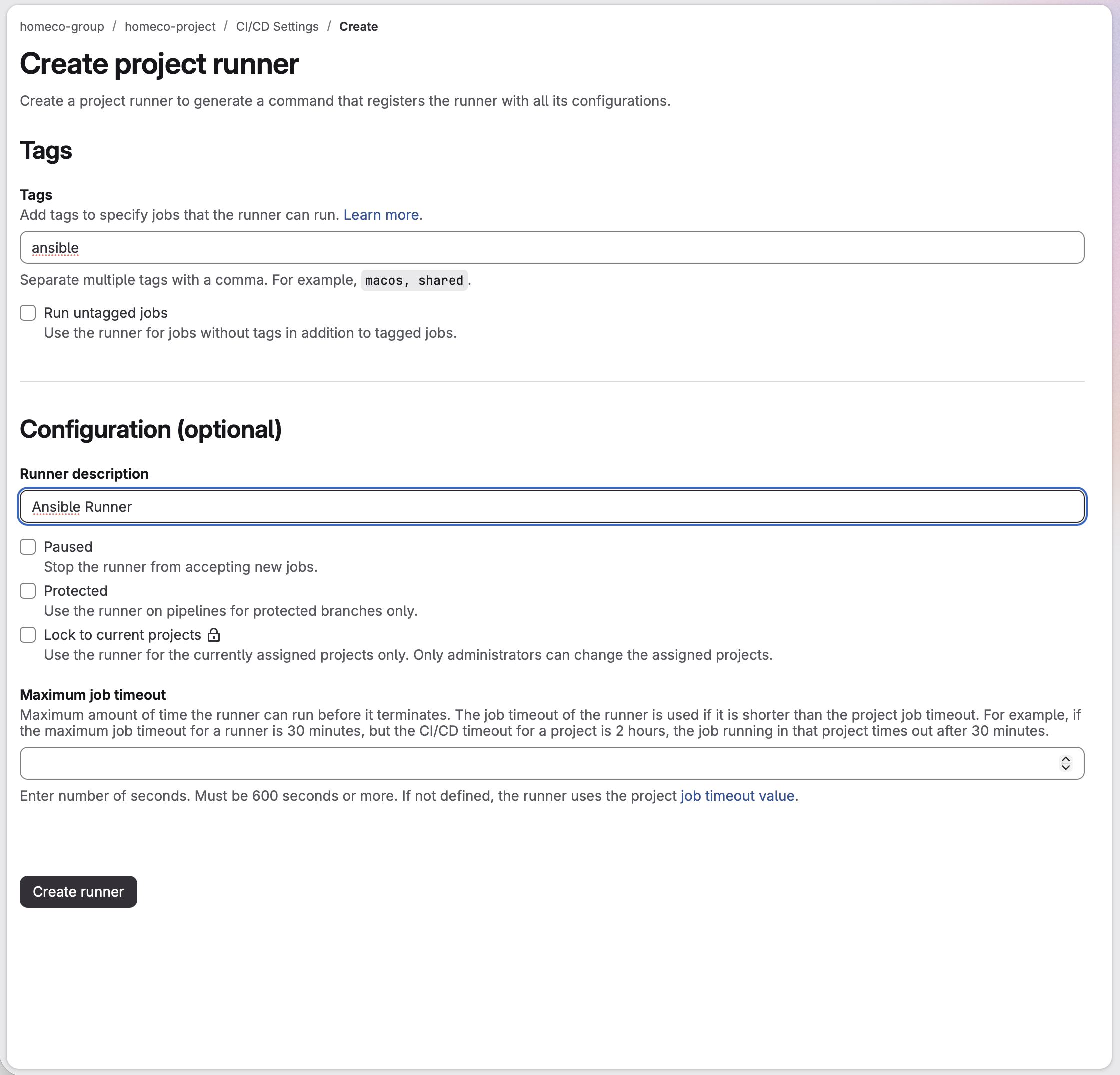
On Gitlab.com, go to your project > Settings > CI/CD Settings > Runners > "Create project runner" to create a new runner. Add an "ansible" tag, enter a description, and then click "Create runner". Save the API token, you'll need it to register the runner later and you cannot retrieve it from the GitLab UI.
Back at your on-premise machine running Docker that will host the runner.
docker volume create gitlab-runner
docker volume create gitlab-runner-config
Start the runner.
docker run -d --name gitlab-runner --restart always \
  -v /var/run/docker.sock:/var/run/docker.sock \
  -v gitlab-runner-config:/etc/gitlab-runner \
  -v gitlab-runner:/home/gitlab-runner \
  gitlab/gitlab-runner:latest
Register the Runner
Execute the register command inside of the previous docker container.
docker exec -it gitlab-runner gitlab-runner register
- Instance URL - https://gitlab.com
- Enter the token from creating the runner in CI/CD Settings
- Description - ansible_runner
- Leave Job Tags blank
- Leave Maintenance note blank
- Executor - docker
Restart the container to make sure it saved and is reloading the config file.
docker stop gitlab-runner
docker start gitlab-runner
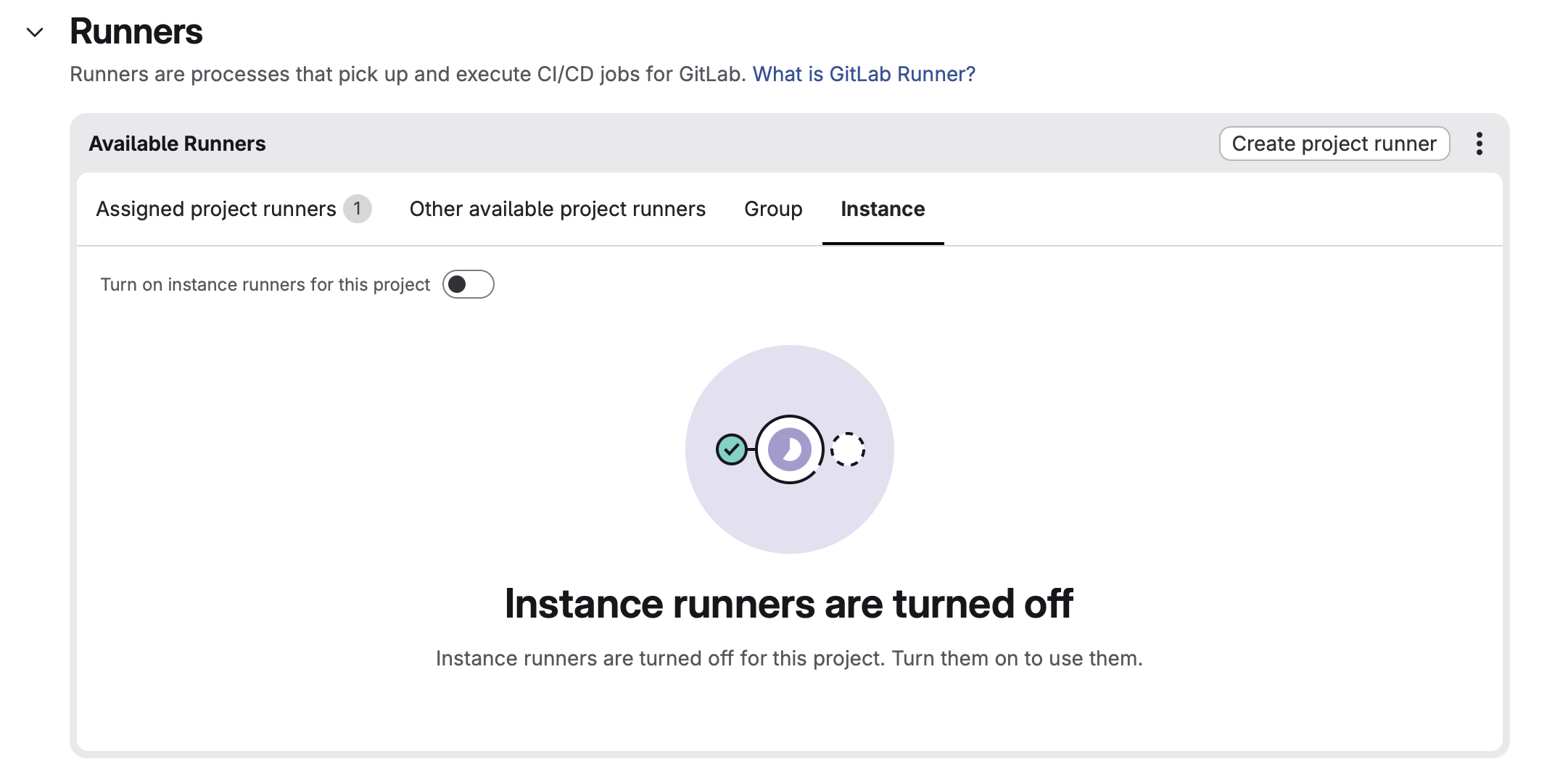
Now check gitlab Settings > CI/CD > expand the Runners section. You should see the runner with an “online” status.
While we are here, disable instance runners.
GitLab Security
We will have to provide GitLab pretty serious access to our infrastructure to allow for Ansible automation so check your settings for the level of visibility and permissions you want. I'm going to set some of my stuff to have public visibility so that I can share it here, but otherwise I would set everything to private.
Start from the group level and work you way down to the pipeline. Under Settings > General on the group, set your visibility under Name, description, visibility. Check Permissions and group features. Navigate to the project inside the group and set your desired visibility under Settings > General > Visibility, project features, permissions.
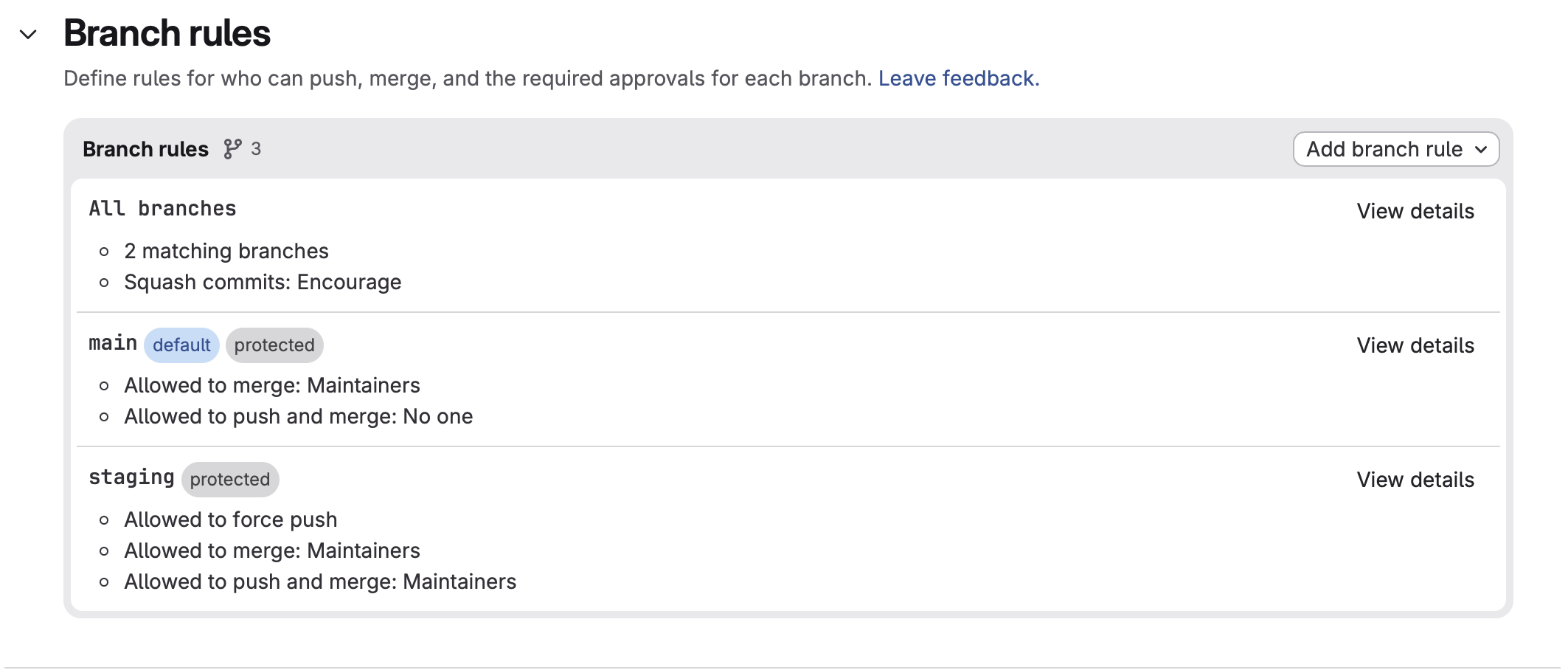
Set up branch rules for the project under Settings > Repository > Branch Rules.
Ansible
Let’s get a simple Ansible Playbook going that will just perform linting on the staging branch and run Ansible to check for changes, but not apply them. I'm going to do this in separate stages since this pipeline is so simple. A benefit of this is that we will have visual feedback for each stage in the GitLab pipeline UI. At the end I define a deploy job that will only run when changes are merged into the main branch. Let's start on the staging branch and ignore that last job for now.
Check out the repo to view the files if you'd like.
git clone --branch example51 git@gitlab.com:homeco-group/homeco-project.git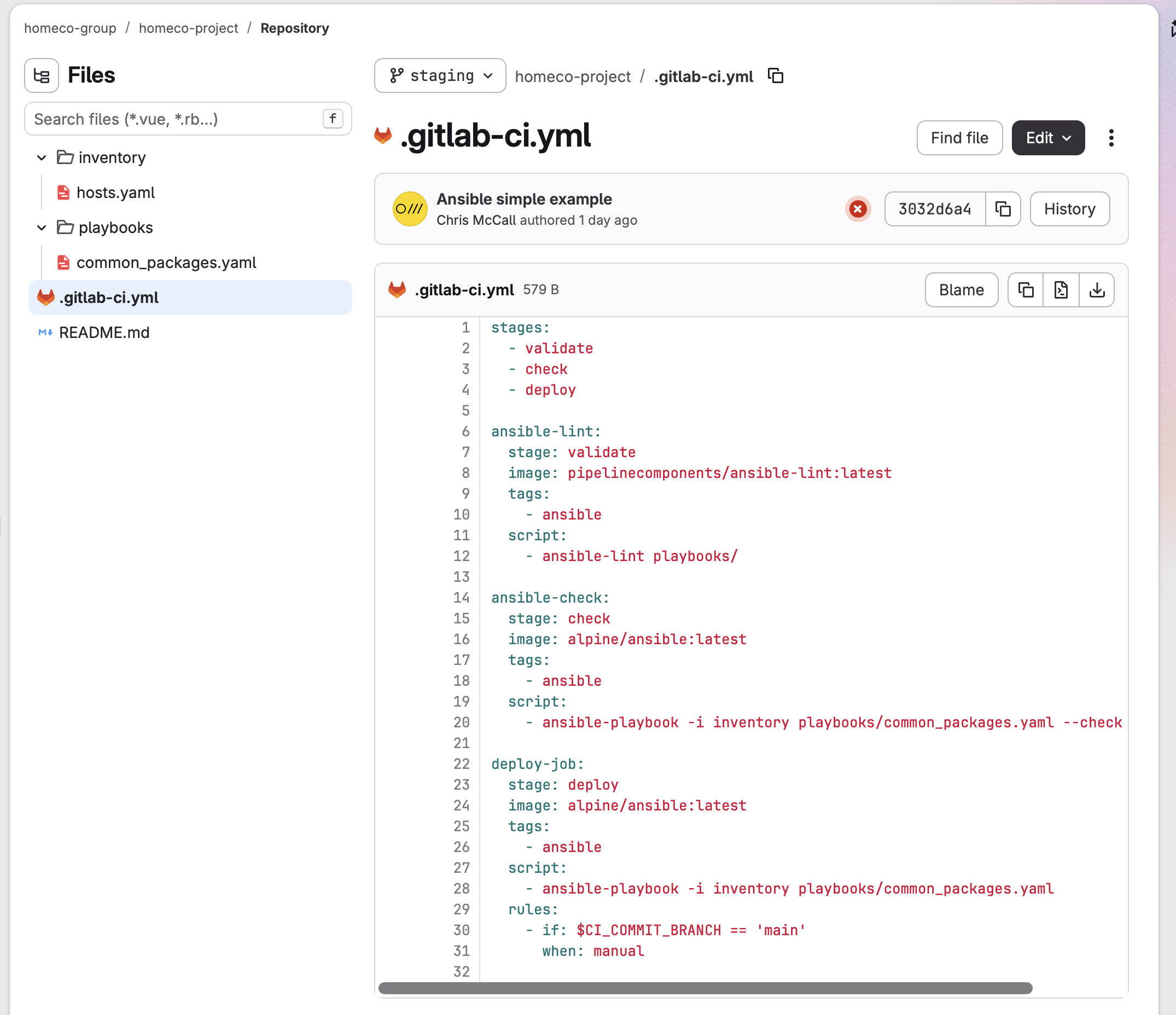
# .gitlab-ci.yml
stages:
  - validate
  - check
  - deploy

ansible-lint:
  stage: validate
  image: pipelinecomponents/ansible-lint:latest
  tags:
    - ansible
  script:
    - ansible-lint playbooks/

ansible-check:
  stage: check
  image: alpine/ansible:latest
  tags:
    - ansible
  script:
    - ansible-playbook -i inventory playbooks/common_packages.yaml --check

deploy-job:
  stage: deploy
  image: alpine/ansible:latest
  tags:
    - ansible
  script:
    - ansible-playbook -i inventory playbooks/common_packages.yaml
  rules:
    - if: $CI_COMMIT_BRANCH == 'main'
      when: manual
Everything wont work yet, but let's test to see if there are any unexpected problems.
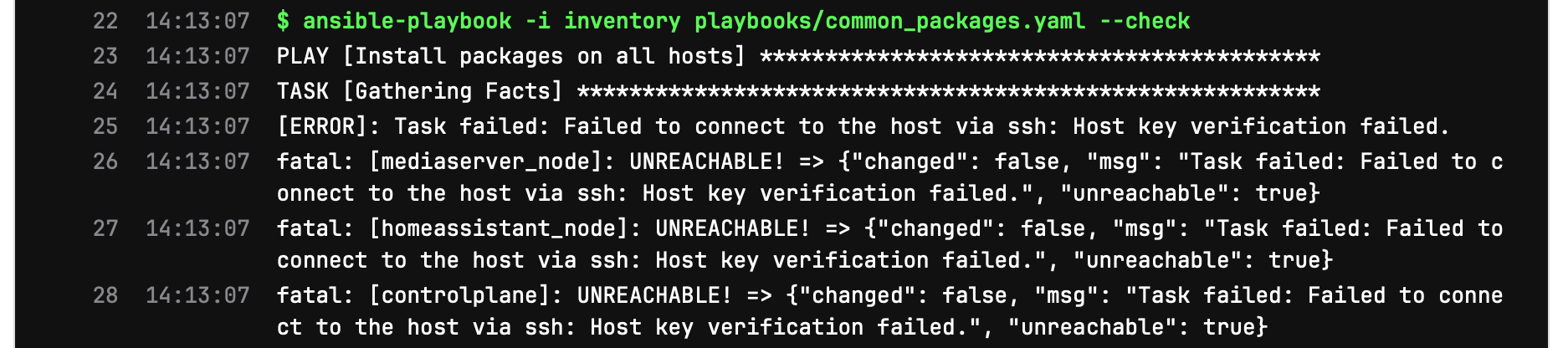
Ansible-check fails with “Task failed: Failed to connect to the host via ssh: Host key verification failed”, but everything else looks good.
Keys and Variables
To allow the job to be able to talk to our Ansible hosts we have to set up some keys. Create a new key pair, don’t reuse an existing key for this. Don’t use a passphrase on the key or your pipeline will pause waiting for you to enter it.
ssh-keygen -t ed25519 -C "ansible-runner"
Copy the public key to all of the hosts Ansible will configure.
ssh-copy-id -i id_ed25519.pub dellnode01
ssh-copy-id -i id_ed25519.pub mbpnode01
ssh-copy-id -i id_ed25519.pub miniserve
Private Key Variable
Create a new project variable(project Settings > CI/CD > Variables) using the file type. Visibility must be set to Visible. Use “ANSIBLE_SSH_PRIVATE_KEY” as the Key. If you set your branches to be protected earlier, you can use the Protect variable flag. Copy the contents of the private key into the Value field, make sure to have a newline as the final line of the value.
KnownHosts Variable
Use ssh-keyscan on all of your Ansible target hosts to create a list of all the public keys. From the output of each host I am going to take the key labeled “ssh-ed25519”. Paste these all into a temporary text file, placing each key on it's own line.
ssh-keyscan dellnode01
Create a new project variable using the file type. Visibility must be set to Visible. Use “ANSIBLE_SSH_KNOWN_HOSTS” as the Key. Copy the contents of the temporary file we just made into the Value field.
Use the Keys Inside of the Pipeline Configuration
I’m using the alpine/ansible image to run the Ansible check job, so rather than just installing ssh-agent, I want to see if it is already included. Use Docker to get an interactive shell into an alpine/ansible container and see if the ssh-agent command exists.
~ % docker run -it alpine/ansible bash
fd715fe8ba42:/# which ssh-agent
/usr/bin/ssh-agent
The image includes ssh-agent so I will skip an apt install step in this pipeline.
Update the ansible-check job with a before_script inside of gitlab-ci.yml to use the variables created earlier.
# .gitlab-ci.yml

ansible-check:
  stage: validate
  image: alpine/ansible:latest
  tags:
    - ansible
  before_script:
  ##
  ## If your image needs ssh-agent, or you want to get the latest version
  ## - 'command -v ssh-agent >/dev/null || ( apt-get update -y && apt-get install openssh-client -y )'

  ##
  ## Run ssh-agent (inside the build environment)
  ##
  - eval $(ssh-agent -s)
  ##
  ## Give the right permissions, otherwise ssh-add will refuse to add files
  ## Add the SSH key stored in SSH_PRIVATE_KEY file type CI/CD variable to the agent store
  ##
  - chmod 400 "$ANSIBLE_SSH_PRIVATE_KEY"
  - ssh-add "$ANSIBLE_SSH_PRIVATE_KEY"
  ##
  ## Create the SSH directory and give it the right permissions
  ##
  - mkdir -p ~/.ssh
  - chmod 700 ~/.ssh
  ##
  ## Known host to prevent host key validation failure
  ##
  - cp "$ANSIBLE_SSH_KNOWN_HOSTS" ~/.ssh/known_hosts
  - chmod 644 ~/.ssh/known_hosts
  script:
    - ansible-playbook -i inventory playbooks/common_packages.yaml --check
Commit the changes and then go watch the pipeline on GitLab.
git add .
git commit -m "Add CI variables to pipeline"
git push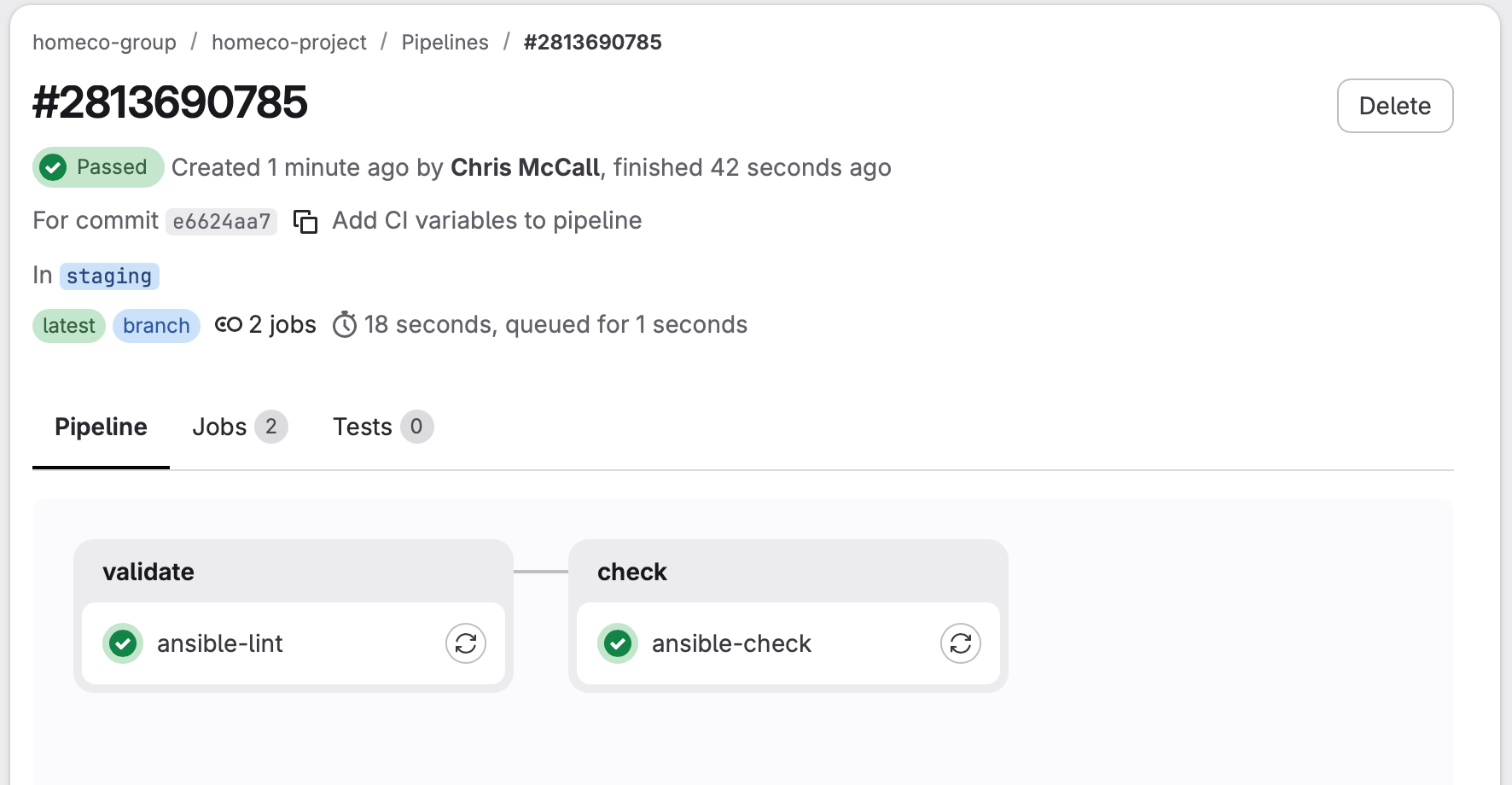
After looking at the logs for ansible-check, we can see that no changes would be performed.

Now confirm that it will detect changes. I'm going to say that I want powertop on all of my hosts.
# common_packages.yaml

- name: Install packages on all hosts
  hosts: nodes
  become: true

  tasks:
    - name: Install nfs client libraries
      ansible.builtin.apt:
        name: nfs-common
        state: present

    - name: Install powertop
      ansible.builtin.apt:
        name: powertop
        state: present
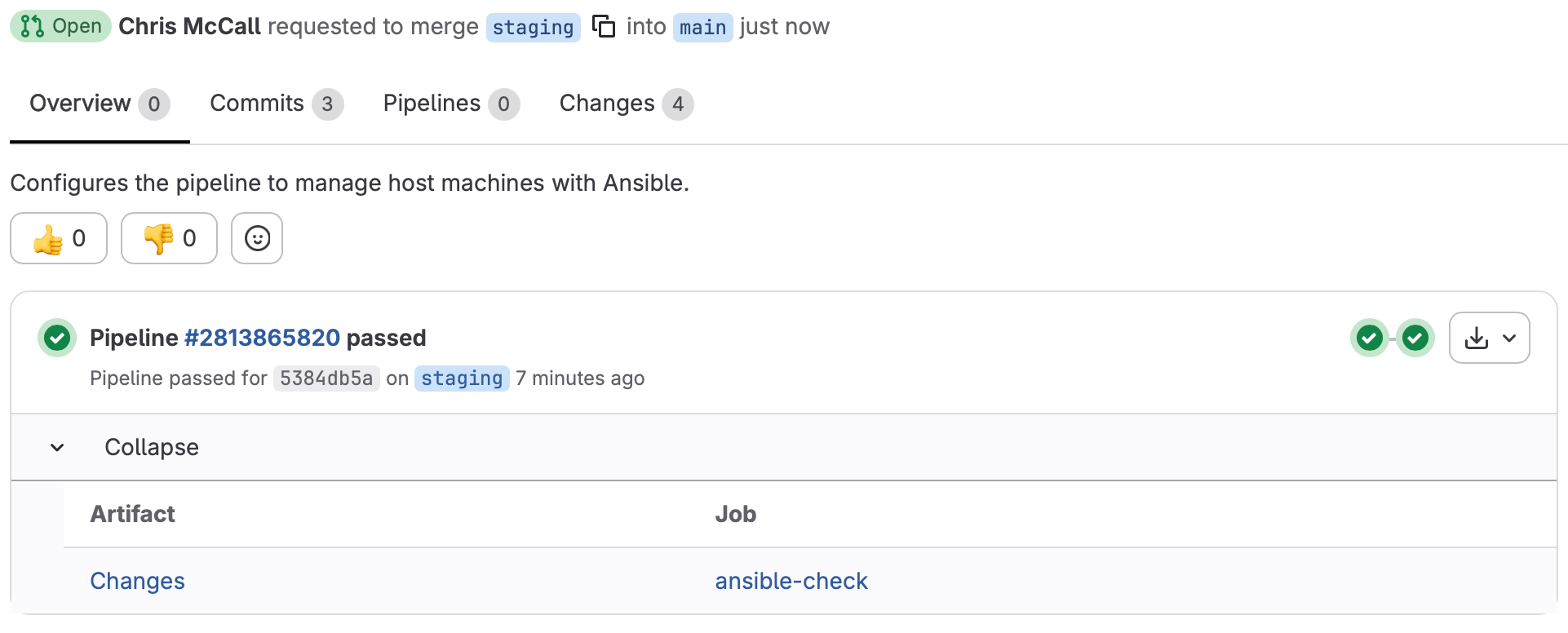
Since I am going to want to merge this change in, update deploy-job so that it can use our key variables. Since I would just copy/paste the before_script into deploy-job, I'm just going to turn it into a template rather than duplicate it. I also want to show the changes on the changes on the GitLab merge UI, so I'm going to add an artifact that captures the check output and use expose_as.
# .gitlab-ci.yml

stages:
  - validate
  - check
  - deploy

# Template job for using ssh variables
.ssh-job:
  before_script:
  ##
  ## Run ssh-agent (inside the build environment)
  ##
  - eval $(ssh-agent -s)
  ##
  ## Give the right permissions, otherwise ssh-add will refuse to add files
  ## Add the SSH key stored in SSH_PRIVATE_KEY file type CI/CD variable to the agent store
  ##
  - chmod 400 "$ANSIBLE_SSH_PRIVATE_KEY"
  - ssh-add "$ANSIBLE_SSH_PRIVATE_KEY"
  ##
  ## Create the SSH directory and give it the right permissions
  ##
  - mkdir -p ~/.ssh
  - chmod 700 ~/.ssh
  ##
  ## Known host to prevent host key validation failure
  ##
  - cp "$ANSIBLE_SSH_KNOWN_HOSTS" ~/.ssh/known_hosts
  - chmod 644 ~/.ssh/known_hosts

ansible-lint:
  stage: validate
  image: pipelinecomponents/ansible-lint:latest
  tags:
    - ansible
  script:
    - ansible-lint playbooks/

ansible-check:
  stage: check
  image: alpine/ansible:latest
  extends: .ssh-job
  tags:
    - ansible
  script:
    - ansible-playbook -i inventory playbooks/common_packages.yaml --check | tee ansible_check.txt
  artifacts:
    expose_as: "Changes"
    paths: ['ansible_check.txt']

deploy-job:
  stage: deploy
  image: alpine/ansible:latest
  extends: .ssh-job
  tags:
    - ansible
  script:
    - ansible-playbook -i inventory playbooks/common_packages.yaml
  rules:
    - if: $CI_COMMIT_BRANCH == 'main'
      when: manual
Commit the changes, the pipeline runs, and if we download our artifact or look at the logs for ansible-check we see 1 change:

This is ready to go. Create a merge request. On the merge request screen our exposed artifact is available to view.
Make the Change
Complete the merge request. Deploy-job has rules:when:manual, so a blocked job shows up for the pipeline.
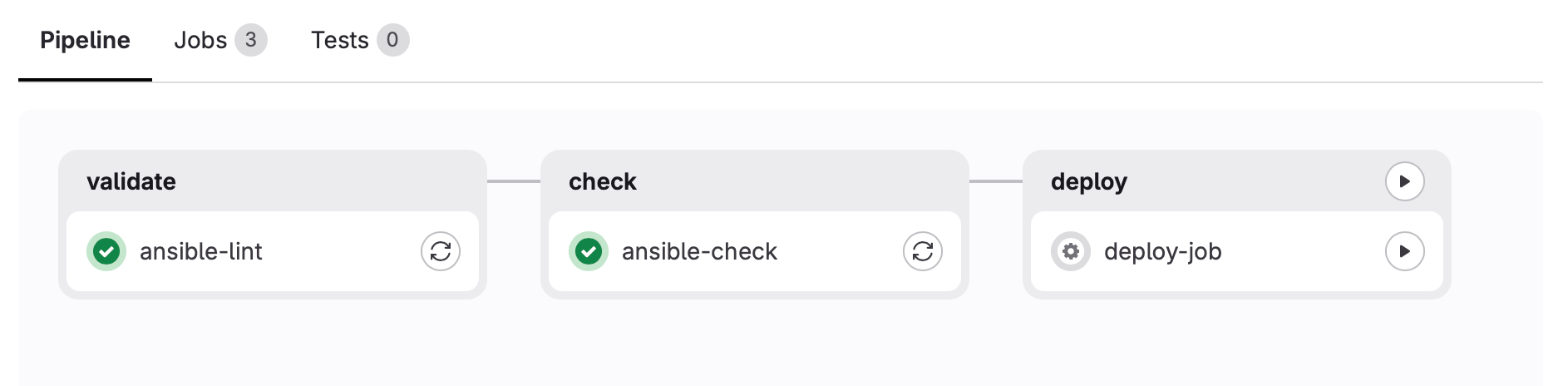
After manually running it, check out the server:
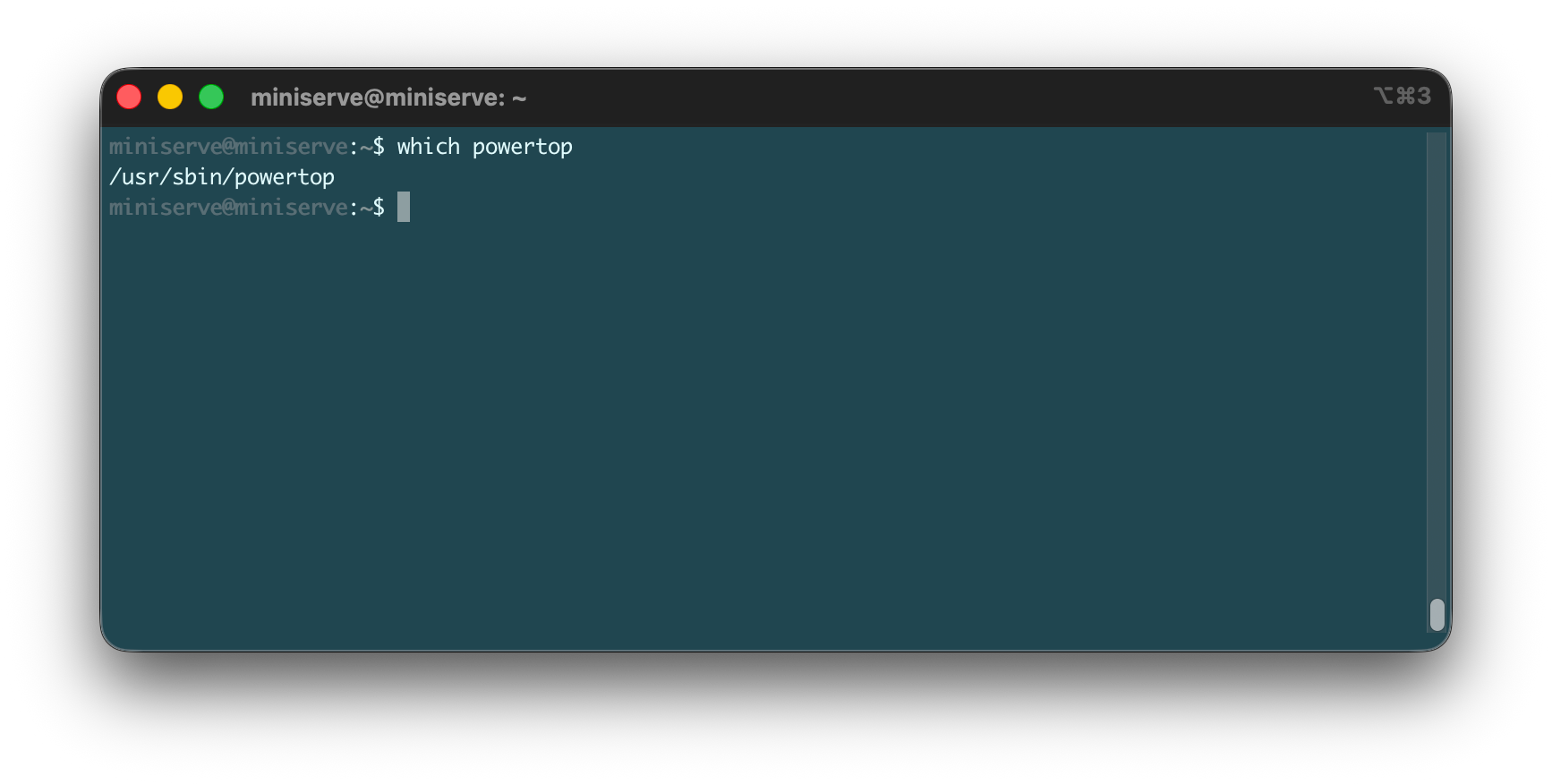
Now we just have to describe the rest of the setup with Ansible... but that will be for another post.
Thanks for following along!